
Git
Sero has a built-in Git app for working in a repository. It gives you and the agent the same view of branches, changes, commits, diffs and stashes, and it can carry out most everyday Git operations.
The Git app changes the active repository. Review a diff before you stage, commit, discard, merge, or push changes.
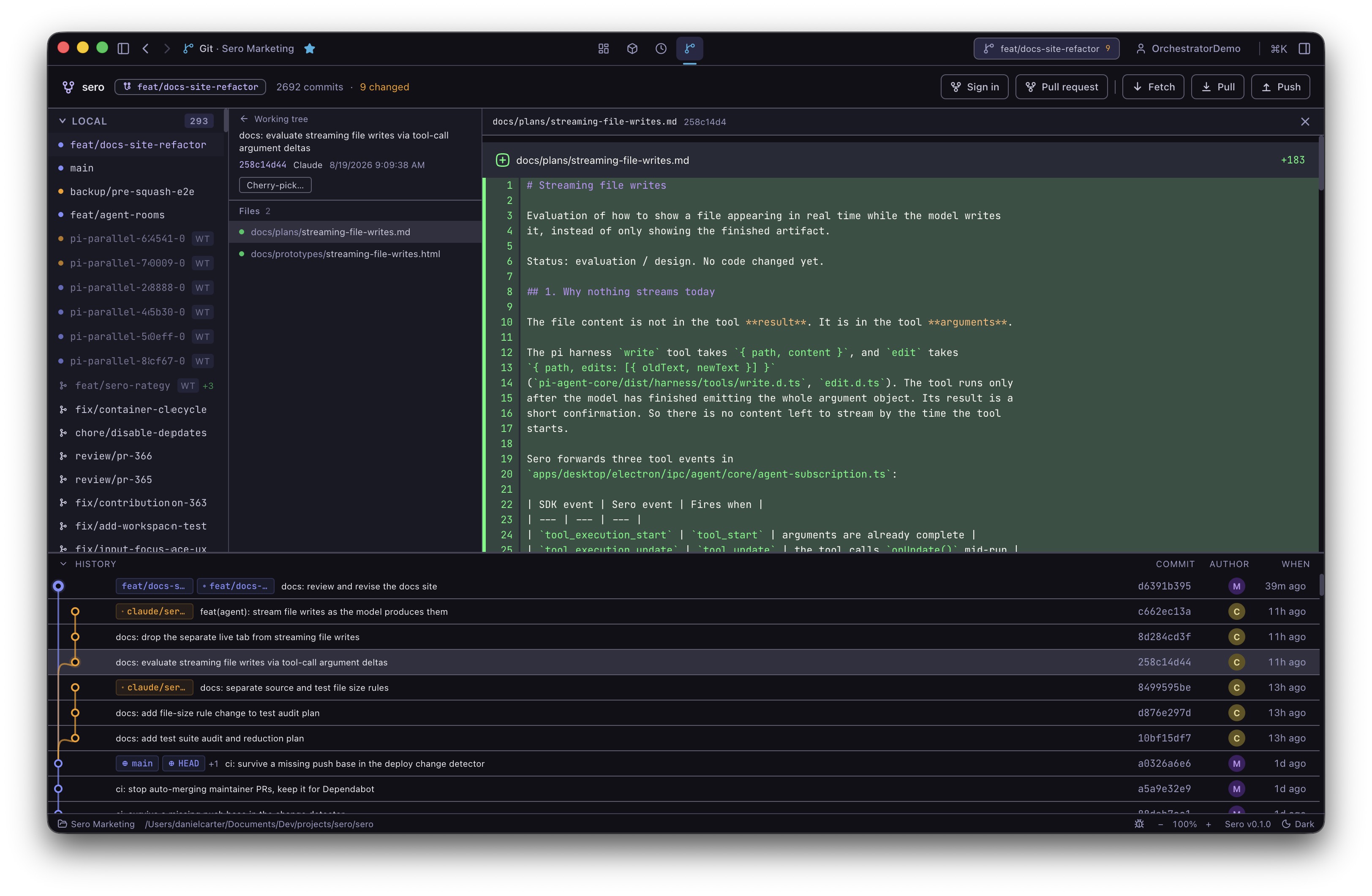
Where you find Git
- The Git app — the full-screen surface above. Everything git-related lives here.
- The Git view in the Explorer — the same working tree and diff, beside your files, for when you are already reading code.
- The title-bar button — the branch name in the top-right corner, from any view. It lists what has changed, commits all of it with one message, and offers Fetch, Pull and Push. Committing only some of the changed files is what the Git app is for.
- The agent — the
git_managertool and the/gitcommand, for asking the agent to inspect or change the repository.
For how Git relates to Sero's own undo and checkpoints, see Checkpoints and Undo. They are separate systems: checkpoints restore workspace files through Sero, Git operations change the real repository.
The Git app
The layout is three columns with history underneath:
- The rail on the left — branches, remotes and stashes. It always answers "where am I".
- The working tree in the middle — your changes, grouped by what you need to do about them, with the commit box at the bottom.
- The diff on the right — whatever you last selected: a changed file, a file inside a commit, the pull request composer, or the conflict resolver.
- History along the bottom, with a divider you can drag to give the graph more or less room.
Unavailable actions are disabled rather than hidden, and the reason sits with the control — "2 conflicts left to resolve" appears under the commit button rather than in a pop-up.
Writing the commit message
The sparkle inside the commit message box drafts a message from what you are about to commit. It spins in place and the message appears; you can then edit it like anything you typed. If nothing useful comes back, the box is left alone.
It describes exactly what that button would commit — what you have staged in the Git app, or everything in the list in the title-bar panel.
Pull requests
Sign in to GitHub with the button in the Git app top bar before you open a pull request or publish a repository. With a GitHub remote connected, select Pull request in the top bar. The right-hand pane becomes a pull request composer: pick the source and target branches, and draft a title and description from the changes. If the repository has no remote, select Publish to GitHub in the top bar instead.
When a merge stops
If a merge, pull or cherry-pick hits a conflict, the app says so in a banner and stays in that mode until you leave it. Abort merge is in the banner, and it is the only place it appears.
While the merge is unfinished:
- Changed files are grouped as Conflicts, Resolved and Merged cleanly, so the list is your to-do list.
- Fetch, Pull, Push and pull requests are switched off.
- The commit button counts down — "2 conflicts left to resolve" — and turns into Conclude merge once nothing is left.
Selecting a conflicted file turns the right pane into a resolver. It shows the two sides in Git's own words — current is what your branch has, incoming is what is being merged in — with buttons to accept either side or both, per conflict or for the whole file. Accepting writes the file and stages it, because staged is Git's own definition of resolved.
Resolving conflicts with AI
Resolve with AI in the banner works through the conflicts for you. It fixes what it can and applies each one as it goes, so the file list drains while it works, and the pane on the right keeps a running account: one line per conflict saying what it changed and why.
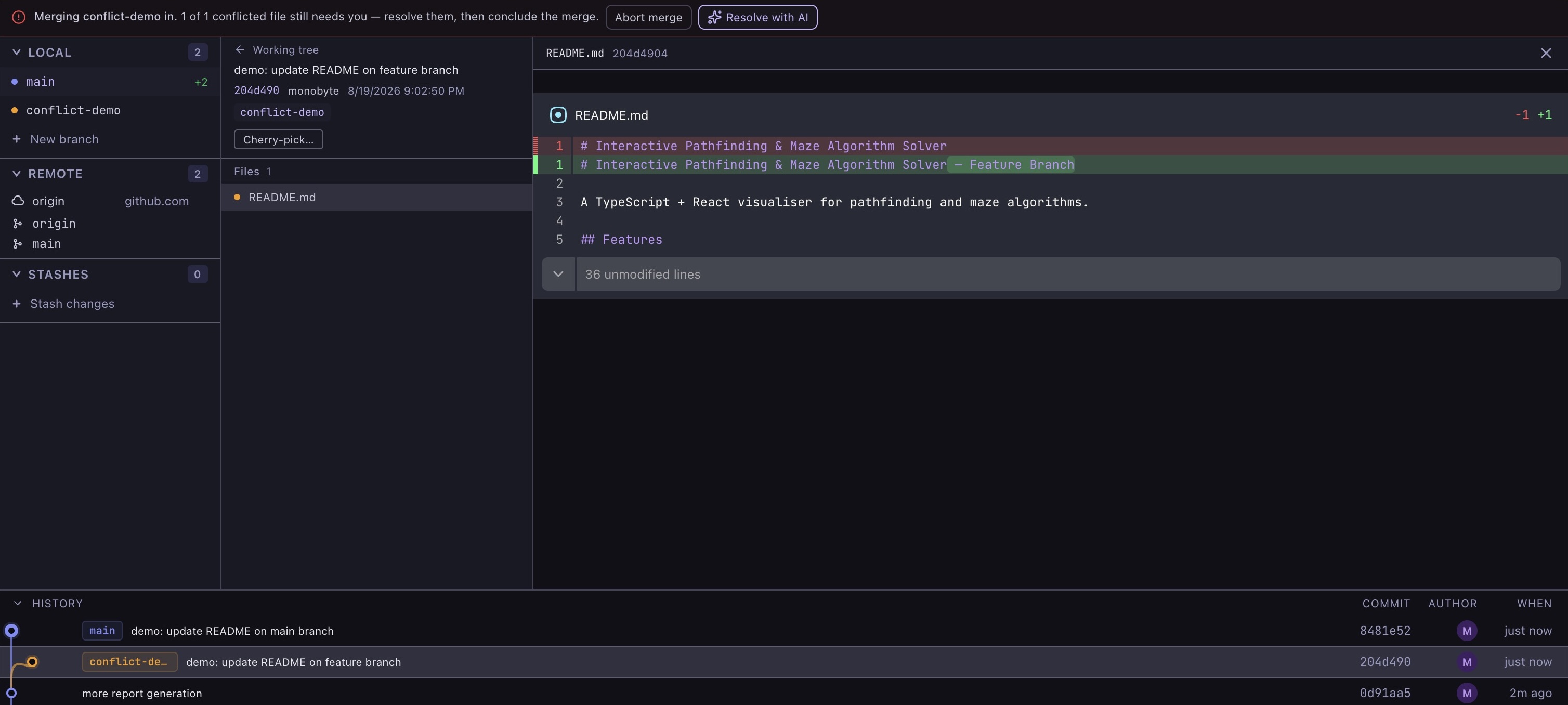
It interrupts only when it genuinely cannot decide, and then it asks a specific question with the real options rather than handing the file back. A question holds up that one conflict; anything independent carries on behind it. Your answer is carried forward, so a later conflict about the same thing is decided rather than asked about again.
- Pause and Stop are both available. Stopping keeps everything already resolved — those are ordinary working-tree changes.
- Undo AI resolutions takes back only the machine's work and leaves the answers you gave.
- Files it resolved are grouped under Resolved by AI so you know what to review.
- Nothing is committed, and Abort merge is untouched throughout.
You still review the result. The account of what it did stays on screen, and every line jumps to its file, so it doubles as a review checklist.
Other states the app handles
- A repository with no commits. The branch is shown even though nothing is on it, new files get their own status, and Publish to GitHub takes the place of the pull request button.
- A detached HEAD. The app says plainly that commits made here belong to nothing, and offers both ways out: create a branch here, or return to the default branch. Committing is disabled with the reason attached; fetch stays on, because it is harmless.
- Switching branch with uncommitted changes. The only dialog in the app, because it is the only action that can destroy work. Three named outcomes: bring the changes along, stash them first, or discard them.
Asking the agent
The /git command is a conversational shortcut that routes your request to the
git_manager tool. It is not a separate Git implementation.
Use disposable repositories when trying unfamiliar actions — a small throwaway repo with a README is enough to test commits, branch deletion, stash pop, merge, cherry-pick, or force flags.
Read-only actions
Prefer these when you want the agent to explain the repository without changing anything:
refresh— re-read the repository. Rarely needed by hand; the app keeps itself current.status— changed files and index state.log— recent commit history.branches— local and remote branch information.diff— one file's diff; needsfile, andstagedpicks the staged or unstaged side.show_commit— one commit; needs ahash.
Their output can still include private file names, commit messages, paths and code. Redact before sharing logs or screenshots.
Actions that change the repository
These change the real repository, working tree, index, remotes or worktrees. Review the request before running it, especially bulk ones.
- Files and index —
stage,unstage,discard. - History and state —
commit,stash,stash_pop,stash_apply. - Remotes —
fetch,pull,push. - Branches and worktrees —
checkout,create_branch,delete_branch,remove_worktree. - Integration —
merge,abort_merge,cherry_pick.
Parameters worth knowing:
file— forstage,unstage,discardanddiff.message— required forcommit, optional forstash.branch— required for branch actions,mergeandcheckout.hash— required forshow_commitandcherry_pick.worktreePath— required forremove_worktree.stashIndex— selects a specific stash entry.all— bulk stage/unstage, auto-stage on commit, pre-stash on cherry-pick.force— destructive overrides: force branch or worktree deletion, and discarding local changes when switching branch.
Avoid prompts like "stage everything and push" unless you have already reviewed the diff and know the target remote and branch.
Connecting a remote
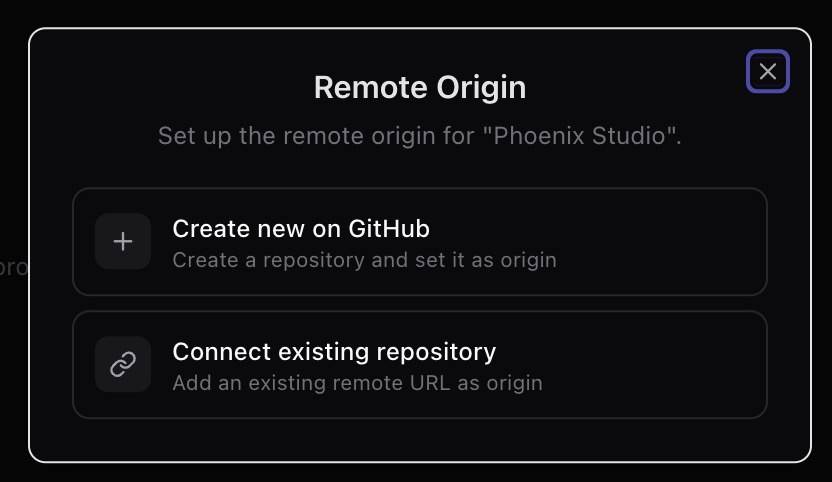
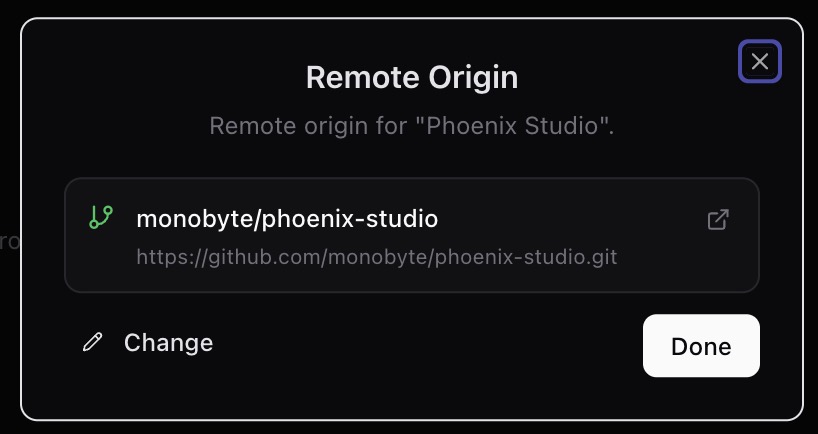
When a workspace has no remote, Sero offers to create a new GitHub repository or connect an existing URL as the origin. Treat it as a repository-changing step: confirm the account, organisation, visibility and URL first.
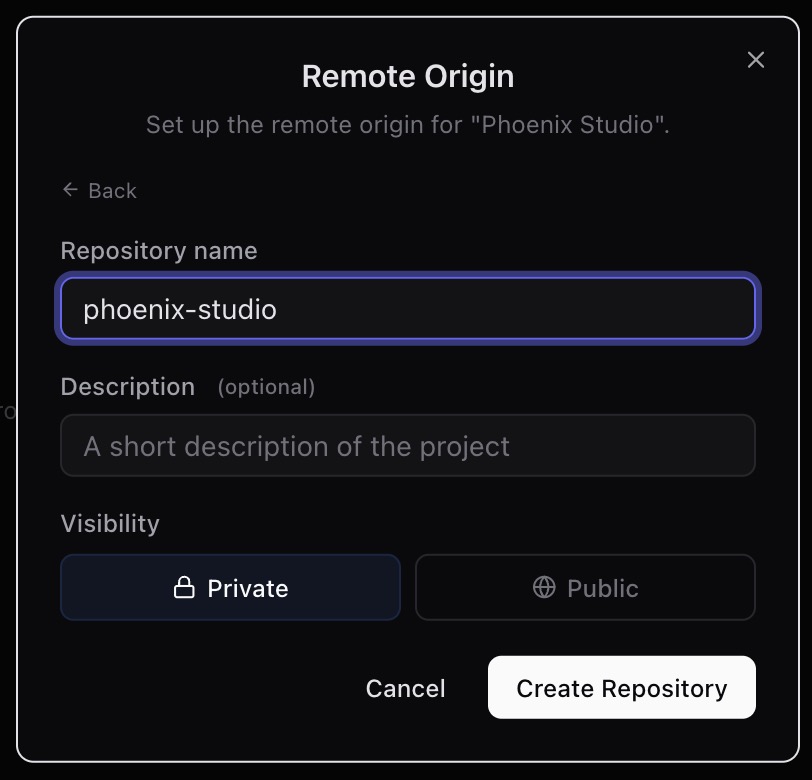
If you create a new repository from Sero, review the name, description and visibility before creating it.
Afterwards Sero shows the resolved owner, repository and URL so you can confirm which remote the workspace will use.
Safety rails
The app has guardrails, but they are not a guarantee that an action is safe.
- Checkout refuses a branch already checked out in another worktree.
- Branch deletion refuses the current branch, the default branch, and branches checked out in a worktree.
- Worktree removal refuses the main worktree.
- Dirty or locked worktrees are protected unless
forceis used. - Cherry-pick refuses a dirty working tree unless
all=true, which stashes your changes first — you may need to pop that stash afterwards. commitwithall=truestages everything before committing.- Push can fall back to
push --set-upstreamwhen there is no upstream.
Take particular care with force and all. They are convenient in a throwaway
repo and can skip important review steps in a real one.
State and storage
The Git app keeps workspace-local state at:
Both the app and the agent read it, so they share one view of the repository. Missing state falls back to an empty default; malformed state may need removing.
Sero keeps its own files out of your repository, so they never appear as changes to commit:
These go in .git/info/exclude, which is local to your clone — Sero does not
touch your project's .gitignore. If you want to track your
.sero-workspace.json, add it deliberately with git add -f and Sero will keep
reporting changes to it as normal.
Treat this state as local metadata. It can include branch names, file paths, commit metadata, status summaries and timestamps.
Troubleshooting
The app shows no repository
Check the active workspace is inside a Git repository. Outside a repository there is no branch or status data to show.
The app and the command line disagree
It shouldn't happen: the app watches the repository and updates itself, whoever
made the change. If it ever does, ask the agent to refresh, and say so — the
watcher is meant to catch command-line changes on its own.
A branch or worktree action was refused
Check whether the branch is current, the default, or checked out in another
worktree. For worktrees, check whether the path is the main worktree, dirty or
locked. Avoid force unless you know what Git will remove.
A conflict needs something the app cannot do
Resolve it with normal Git tools in the same workspace and continue or abort as Git instructs. The app follows along on its own.
Push went to the wrong place
Check the current branch and its upstream before pushing. If there is no upstream, push may set one. Verify remotes and branch names in a disposable repo before relying on this in a real project.
Privacy and safety
- Use disposable repositories for demos, screenshots and testing.
- Review diffs before staging, committing, pushing, merging or cherry-picking.
- Avoid sharing screenshots with private paths, branch names, remotes, commit messages or code in them.
- Assume anything that changes the repository takes effect immediately.
- Be careful with
all=true,force=true, stash pop and apply, branch deletion, worktree removal, push, merge and cherry-pick. - Prefer
status,log,branches,diffandshow_commitwhen you only want the agent to explain things.