Design Library

Status: built-in plugin. Ships with Sero and is available in every profile.

Overview

Design Library is your private visual memory. You collect screenshots and images you like, Sero reads each one and describes its design language, and later you turn that language into original work.

You collect references in the Library, turn them into runnable work in Design, and keep the results in the Gallery. Designs can generate their own artwork and video, and you can generate references straight into the Library.

Getting started

  1. Open Design Library from the sidebar.
  2. Add an image — drag it onto the window, paste it from the clipboard, or use Add inspiration.
  3. The card appears straight away. Analysis runs behind it.
  4. Click the edit button on the card to open it, read what the Librarian found, and edit anything you disagree with.

Clicking a card selects it, which is how you gather references. The edit button in its top corner opens it.

Adding references

Three ways in, all identical once the image lands:

  • Drag and drop anywhere in the Library.
  • Paste from the clipboard.
  • Add inspiration opens a file picker; select as many images as you like.

If you add an image you already have, Design Library opens the one you already have rather than making a second copy.

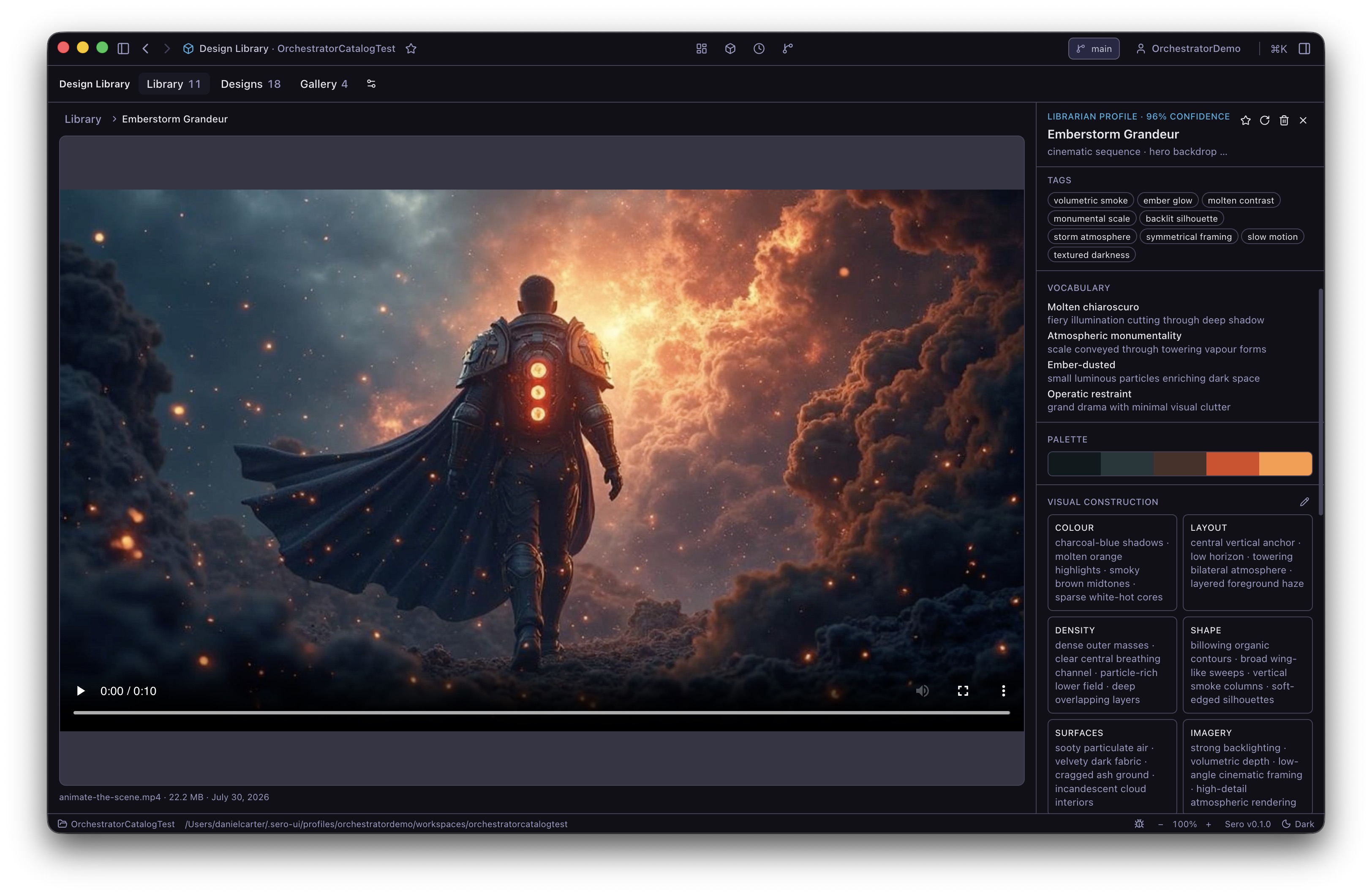
What the Librarian reads

Analysis starts on its own after every import. It describes feel rather than content — rhythm, density, contrast, typography, geometry, material and mood — and deliberately does not record logos, brand names, copy or anything specific enough to be recognisable. That is what makes a reference safe to generate from later.

For each reference you get a title, a primary style, design types, tags, a one-line summary, the design intent, an aesthetic vocabulary, a palette, eight groups of visual observations, Always/Never guardrails, and a generation prompt.

Editing analysis

Every field the Librarian writes is yours to change.

  • Edit replaces that one field.
  • Reset puts the Librarian's own value back.
  • Reanalyse refreshes everything you have not edited, and leaves everything you have edited alone.

A field you edited is marked Edited. Blanking a field counts as an edit, so a field you deliberately emptied stays empty through a reanalysis.

Finding things

  • Search covers titles, original file names, primary styles, tags and Design types. It does not search notes or detailed analysis.
  • Filters narrow by media, style, tag, colour and source. The colour filter uses families such as Reds, Greens, Blues and Neutrals. Values inside one filter widen the results; different filters narrow them.
  • Favourites and Collections are yours to arrange. A collection is a plain group you name.
  • Select references and open Collections to add or remove them. Use the action menu beside a custom collection to delete the collection; its references stay in the Library.
  • Style groups appear on their own once two references share a primary style. They are simply what the Librarian already said, counted — nothing extra runs to produce them.

Designing from your references

Select the references you want, then choose Create design. Order matters: the first one you pick leads the visual direction and the rest contribute traits that fit alongside it. You can use up to six.

The dialog is one decision:

Choice What it does
Request What you want built, in your words
Prompt recipe A named instruction template applied on top of the request
Output target Self-contained HTML, or React with Tailwind
Variation mode Blend all the references, or one variant per reference
Variants 1–5 directions, generated independently
Inspiration strength How closely the result follows the references rather than the request

Under the brief, Applied guardrails lists every rule the run will be held to — the Always and Never rules the Librarian wrote for your references, combined. Only rules in force are shown.

Session rule adds one of your own for this design alone. It carries the same weight as the references' rules and is recorded on the design as yours, so a rule you asked for on the day is never mistaken for something the Librarian read in a reference. Adding a rule the references already state changes nothing.

The panel beside it names the references in order and says whether the synthesis is ready or blocked.

When references disagree

If one reference requires something another forbids, that rule is held back and you are asked which side to keep. Nothing generates until you decide, because a brief that contradicts itself would just have the model pick a side quietly. Only genuine contradictions block; different styles blend without a question.

What you choose is recorded on the design, so "why is this design ignoring that rule?" stays answerable later. Editing a reference afterwards does not change a design that was already generated under the old rules.

A reference has to be analysed before you can design from it. For an image you imported, the design run receives the Librarian's written description and never the image itself.

An image made by Design Library can also be used as the actual artwork. When you start a design from a generated or restyled image, the Design gets its own copy and can use it across variants. Removing the Library item later does not break the Design.

Watching it generate

Each variant is its own piece of work. They run a couple at a time and appear as they finish.

  • Each one names itself — "Signal ledger", "Glass telemetry" — so the tabs say what the directions were rather than counting them.
  • One failing changes nothing about the others — you keep whatever worked.
  • Try again re-runs a single variant. Its earlier attempt stays in its history.
  • Stop cancels one variant and leaves its siblings running.
  • Closing the app does not stop generation, and work resumes if Sero restarts mid-run.

The preview

Generated work runs in a sealed frame: no network, no access to Sero, your files or your workspace, and no cookies or storage. Design fonts are bundled with the plugin and passed into the frame as local data.

If the design tried to do something the frame does not allow — load a font from the web, call an API, open a new window — the preview blocks it, still shows everything else, and lists what it stopped underneath the frame. A warning always means the thing was blocked. It never means it was allowed.

Generated designs can use the Design font picker, system fonts, CSS gradients and shapes, and SVG they draw themselves. Generated code cannot request remote fonts or assets.

There is one thing a page can do that no guard can stop in advance: send itself to another address, the way following a link would. The preview notices, empties the frame straight away and says so — but by then that one request has gone out, and a page can write whatever it holds into the address it asks for. What it holds is only itself: the frame never had your files, your storage or anything of Sero's to put there.

Underneath the preview you can set the width the page is rendered at, and reload it. Pane width lets the page reflow as the pane changes, the way a browser window does; desktop, tablet and phone pin it to a fixed width so you can see how it holds up there. A fixed width wider than the pane is scaled down to fit, and the readout always shows the width being used and the scale it is shown at. The last control hides the panel beside the preview so the page has the whole surface, and brings it back.

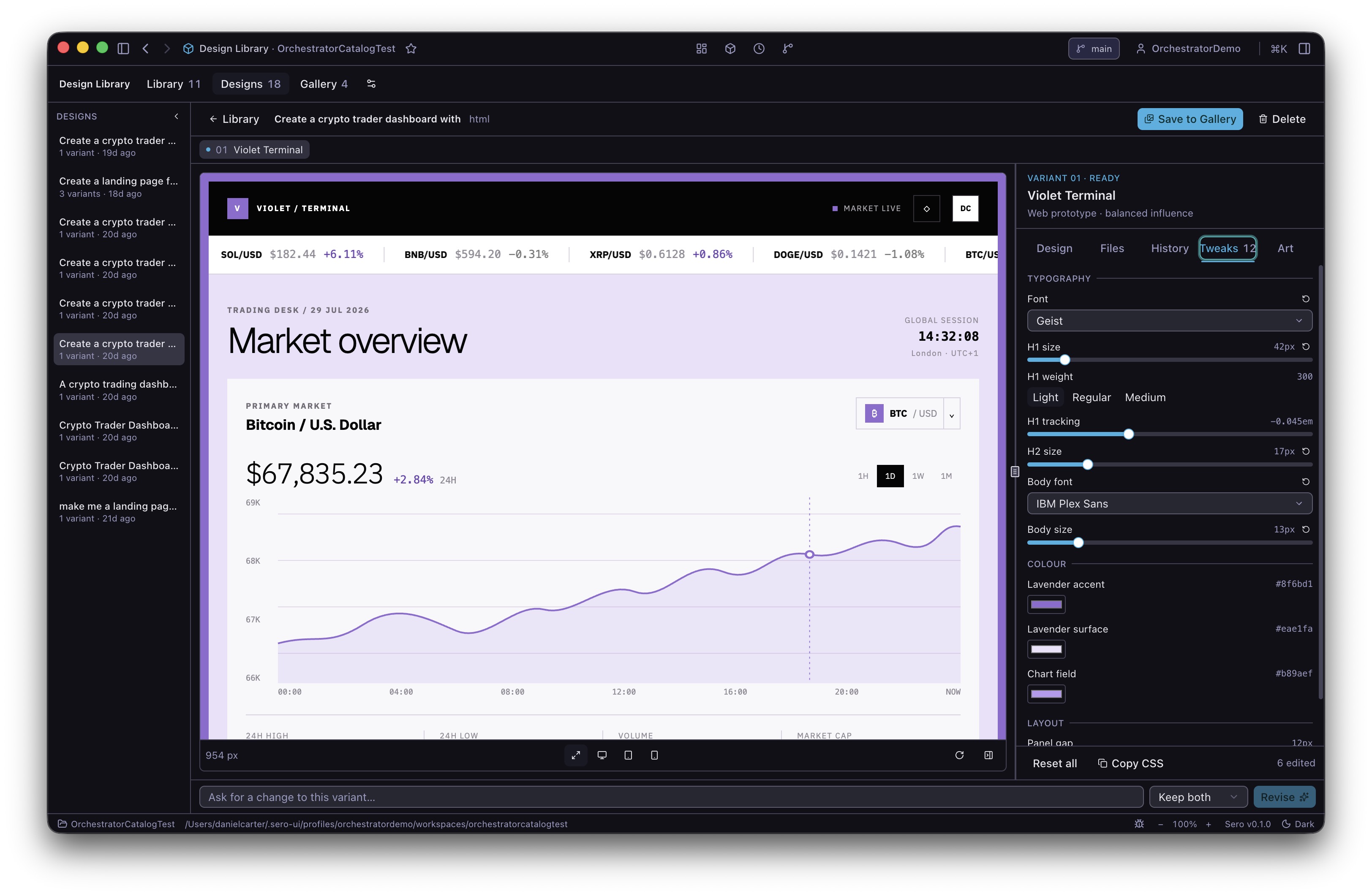
The panel beside the preview

Five tabs, all about the variant on screen:

  • Design — what the run made and what it was made from: its concept, the references it drew on, and the visual language it took from them.
  • Files — what it wrote and how big each file is. Show in folder opens that revision in your file manager.
  • History — every result this variant has had, and the tweak values you had set earlier. Selecting one puts it back on screen; nothing is generated and nothing is lost.
  • Tweaks — the live controls for this exact page (below).
  • Art — the pictures and video this design uses (below).

Drag the panel's left edge to widen it, and the width is remembered. When the panel is narrow the tab labels become icons; hover one to see its name. The Designs rail on the far left collapses to initials, which is what makes a wide panel affordable on a laptop.

Designs you have on the go

The rail down the left lists your designs, with the ones still generating at the top and how far along they are. Generation keeps running whether or not you are looking at it, so moving between designs costs nothing, and reopening one puts you back on the variant you were last looking at.

Tweaks

Every result starts with the same typography controls: Font, H1 size, H1 weight, H1 tracking, H2 size, Body font and Body size. Font controls show the standard Design font catalog. Body size drives common copy, controls, tables, labels and utility text through a small shared type scale.

Revisions made before this typography contract keep their original controls. Revise or regenerate them to get the font catalog and shared type scale.

After those, the result has four to eight controls written for that page. They cover relevant colour, composition, spacing, shape, and atmosphere choices. A dense dashboard and an editorial page still get different page controls.

Moving one changes the preview immediately. Each control has a reset, the panel has Reset all, and Copy CSS gives you the values as a block you can paste into the page's own stylesheet.

Values save as you go and survive a restart. Everything you change in one sitting is kept as a single entry under History → Earlier tweak values, so a long session of adjusting is one thing to go back to rather than fifty — and Reset all is undoable for the same reason.

A control that would not visibly change anything is dropped before you see it — a page that never uses the value it was meant to set. When that happens the panel says how many were left out, and expands to say why.

Art

Designs can use pictures that do not exist yet — a hero image, a texture, a background. The model asks for them while it builds, and you can ask for them yourself from the Art tab.

Artwork belongs to the design rather than to one variant, so the same picture is available to all of them and stays until you delete it.

Each piece shows what it is, what it cost, and the name the page refers to it by. That name never changes, even if you generate the picture again — so the page keeps working while you try for a better result.

Button What it does
Generate artwork Ask for a new picture or a short video
Retry Try again for one that failed. The failure stays on the record, and the page needs no change
Copy to Library Copy new artwork into your Library as a reference of its own. Artwork copied from an existing Library item does not offer this action
Delete Hide it from the tray. The file stays until the design is deleted

Only the buttons that apply are shown: nothing to retry on a picture that worked, and nothing to copy until one has actually arrived. Retry appears only where trying again could give a different answer — a provider that was busy, or a run that never finished. Where the request itself was refused, trying again would only be refused the same way, so the button is not offered.

If the provider is unavailable, you get a placeholder you can retry rather than a design that failed. If Sero closes while a picture is generating, it comes back as something you can retry — it is never generated again on its own, because the provider may already have charged for the first attempt.

Asking for changes

The box under the preview asks for a change to the variant on screen: "make the metrics tighter", "try a lighter surface". The run is given the page it is editing, so it changes what you asked about and leaves the rest alone.

Beside the box you choose what happens to the result you already have:

Choice What happens
Replace it The new result takes its place. History marks the old result as replaced, but you can still bring it back
Keep both The new result opens, and the old result stays as an equal alternative in History

Your choice is remembered as the default, and can also be changed in Settings. Nothing is ever deleted by revising — revisions stay until you delete one yourself.

Choose Save to Gallery when a Design revision is worth keeping. The save contains its own source files, effective Tweaks values, artwork, references, guardrails and provenance. It also stores a small PNG preview for the Gallery card. The preview is not the exported design and does not need full output resolution.

Each Design has one Gallery family. Saving it again adds another immutable version to the same card and makes the new version featured. Use the version selector to inspect an older save or feature it again.

The Gallery rail shows live family totals for all designs, favourites, recent saves, and Trash. The Gallery tab shows the same family total. Search works like Library search and narrows live Gallery items and Trash by title.

Action What it does
Open icon Opens the source Design at the exact saved revision
Duplicate Creates an exact editable copy in a new family
Remix Opens generation with the saved brief and references filled in
Delete version Moves one saved version to Gallery Trash
Delete family Moves the full family to Gallery Trash

Deleted versions and families remain recoverable until you delete them permanently from Gallery Trash. Each version owns its files and artwork, so deleting the source Design, a Design asset or a Library reference cannot change the saved result.

Exporting a saved version

Open a Gallery card's action menu and choose Export to Downloads or Export to workspace. Export always uses the version selected on that card. It does not use the featured version unless that is the selected one.

The workspace destination creates one folder named after the Design at the active workspace root. Exporting that Design again replaces its earlier managed export. Design Library does not replace an unrelated folder with the same name. The Downloads destination creates the design folder in your Downloads directory.

Export progress and completion appear in a compact notification. Use its action to show a Downloads export in your file manager or open a workspace export in Sero Explorer.

Each export contains:

  • index.html — the runnable standalone page;
  • source/ — the exact files saved in Gallery;
  • assets/ — every piece of artwork the page uses;
  • fonts/ — any selected Design fonts;
  • effective-tweaks.css — the saved values as ordinary CSS;
  • design-library.json — Gallery provenance, dependencies, Tweaks and file checksums.

Export verifies the saved Gallery files before it writes. It never regenerates and never reads the mutable source Design. The page applies the saved Tweak values directly and runs without Sero or the Tweaks panel. CSS motion also follows the operating system's reduced-motion preference.

Generating references

You can also generate straight into the Library, from the Generate button in the header.

What How
A new image or video from a description Generate, then choose the media type
A new image based on a reference Select one reference, choose Remix, then Image
A restyled image based on a reference Select one reference, choose Remix, then Restyle
A video based on a reference Select one reference, choose Remix, then Video
A sharper copy Select one reference, choose Remix, then Upscale

Generated references arrive in the Library like any other and are read by the Librarian automatically. Open one to see the original prompt and model at the end of the inspector. While one is on its way it shows as a tile in the grid, so you can see that it is coming rather than wondering whether the button worked.

Video

Video is the most expensive thing here, so it always asks before it spends — including when the model asks for it in the middle of building a design. The confirmation says how long the clip will be, because that is what you are being asked to pay for.

The lengths on offer come from the video model itself, not from a list kept here: one model makes clips of exactly 5 or 10 seconds, another does 4, 6 or 8. Change the model in Settings and the lengths change with it. If the model cannot be asked — an unusual endpoint, or no connection at that moment — the clip runs to whatever length that model produces by default, and the confirmation says so.

There is an upper limit of 12 seconds on anything one press can buy. If the video model in Settings makes nothing shorter than that, the plugin says so and refuses rather than quietly buying its shortest clip. Choose a model with shorter clips.

A video needs Sero to be open to get its thumbnail: the frames are captured by the app, not in the background. One generated while Sero was closed shows as still working until the next time you open it, at which point it gets its thumbnail and is read like anything else. The Librarian is shown a strip of frames from across the clip, so it can describe the movement as well as the look.

Until the thumbnail arrives the tile says Capturing frames… rather than showing a broken picture. Opening a clip plays it in place, with the usual controls.

Importing your own video files is not supported yet.

Deleting

Delete moves a reference to Trash, where it stays until you restore it or delete it permanently. Permanent deletion removes the image and its analysis, and leaves behind only a record of what used to be there, so anything that referred to it can still explain what is missing. Deleting a collection never deletes the references inside it.

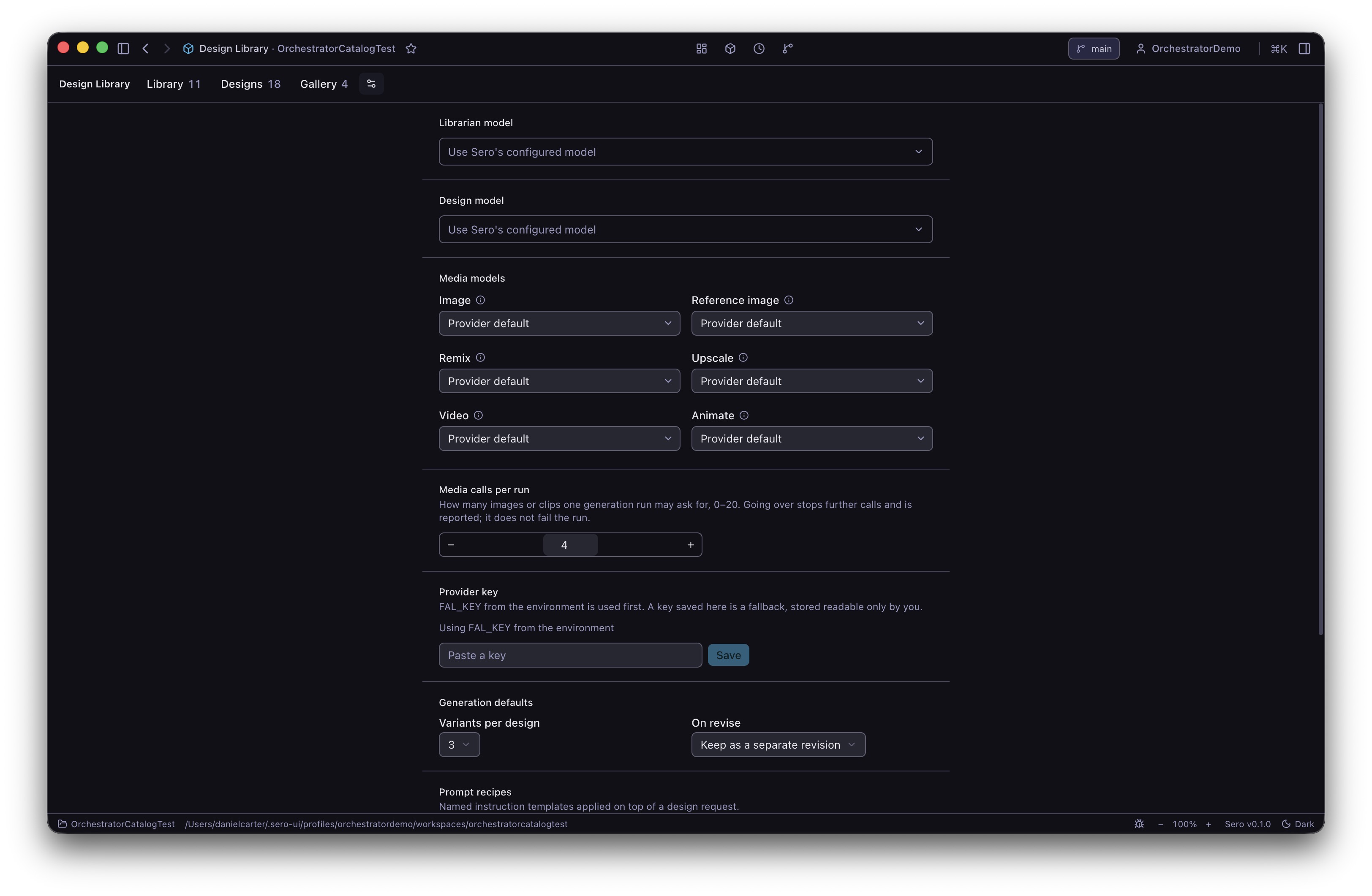
Settings

Setting Default Notes
Librarian model Sero's configured model The model that reads references and writes their design language
Design model Sero's configured model The model that generates and revises work
Variants per design 3 How many directions a new design starts with
On revise Replace what is visible Or keep each revision separately
Prompt recipes Three built in Named instruction templates applied on top of a request
Media models The provider's defaults Search loaded models by name or endpoint for each kind of generation. Choices are grouped by model provider and show the endpoint below the readable name. You can enter an endpoint that is not listed. Use the info icon beside a label to see where that model is used
Media calls per run 4 Use the stepper buttons or enter a number to set how many pictures one design run may ask for. Going over stops further calls and says so, and the design still finishes
Provider key From the environment See below

For Librarian and Design models, clearing the choice uses Sero's configured model. For media models, choose Provider default to use the provider's default.

Sero caches the media model list after it loads. If the provider cannot load the list, Settings shows the error and a Retry action. Saved choices and manual endpoint entry still work.

The picture provider

Generating pictures needs a key for fal.ai. Sero looks for FAL_KEY in the environment first, and falls back to a key you paste into Settings. Settings only ever tells you where the key came from — the environment, saved here, or missing — and never shows the key itself.

A key saved in Settings is stored on your machine, readable only by you, at the same level of protection as Sero's other credentials. If you have FAL_KEY set in the environment, that one wins and Settings says so.

What the agent can do

Design Library exposes its read surface to the main Sero agent, so you can work from any chat.

Tool What it does
design_library_items Search references, read one in full, edit or reset analysis fields, favourite, collect, delete and restore
design_library_analysis Check analysis status, reanalyse, cancel or retry
design_library_designs List and read designs, preview the combined guardrails, start a design from named references, retry, stop or revise a variant, switch or delete revisions, and set tweak values
design_library_media Generate artwork into a design or straight into the Library, list it, retry, delete and copy to the Library
design_library_gallery List saved families, read versions, open or duplicate an exact revision, feature versions, and manage Gallery Trash
design_library_export Export an exact Gallery version to Downloads or the active workspace, and read export status
design_library_settings Change defaults, read index-repair status and schedule a full repair for the next restart. A failed repair retries up to three starts; scheduling it again starts a fresh set of attempts.

Ask things like "what dark, data-dense references do I have?", "reanalyse the Northstar screenshot", "make a dashboard from the Northstar and Material journal references", "revise variant 2 to use a lighter surface", or "generate a dark metallic texture into the Library".

Where things are stored

Everything lives in the active profile's Sero home under apps/design-library/: the original images, their previews, the analysis records, every generated design, immutable Gallery versions and the search index. Generated pictures are downloaded and kept locally too — a design never points at a web address.

What leaves your machine: the image sent to your configured model for analysis, the written description sent when you generate a design, and the prompt sent to the picture provider when you generate artwork.

Deleting a profile deletes its library. There is no cloud copy.