
Architect
Sero Architect manages work across a product instead of one task. Give it an idea and a folder. It researches the idea, proposes a charter with milestones and a cost cap, then builds each milestone through Workflows and Rooms. Architect checks the result before it moves on to release and maintenance. It asks for your input when it needs a decision.
Use Architect when you want Sero to take a product from idea through maintenance. Use Orchestrator when you want to run one Workflow, Room or Goal yourself.
Before you start
- Install and open Sero.
- Configure a model. Architect runs its owner
session on the MED tier: the project default if you set one, otherwise
the global selection in Admin. Delegated Workflows and Rooms resolve the same
way per tier. Set
SERO_ARCHITECT_MODELto override the owner regardless of tier. Architect never falls back to another provider: if the selected model is unavailable, it says so and asks you to choose. - Make sure Orchestrator is available. Architect dispatches its work through Workflows and Rooms.
Architect keeps one persistent agent session for each project. When a project starts, Sero asks for permission to run that session, as it does for a Room member. The session can access only the project folder and the tools you approve.
Create a project
- Open Architect from the app bar and select New project.
- Write the idea in your own words. Architect keeps the text exactly as you wrote it and never edits it.
- Give a folder inside your home directory. An empty or new folder is best.
- Select Create project.
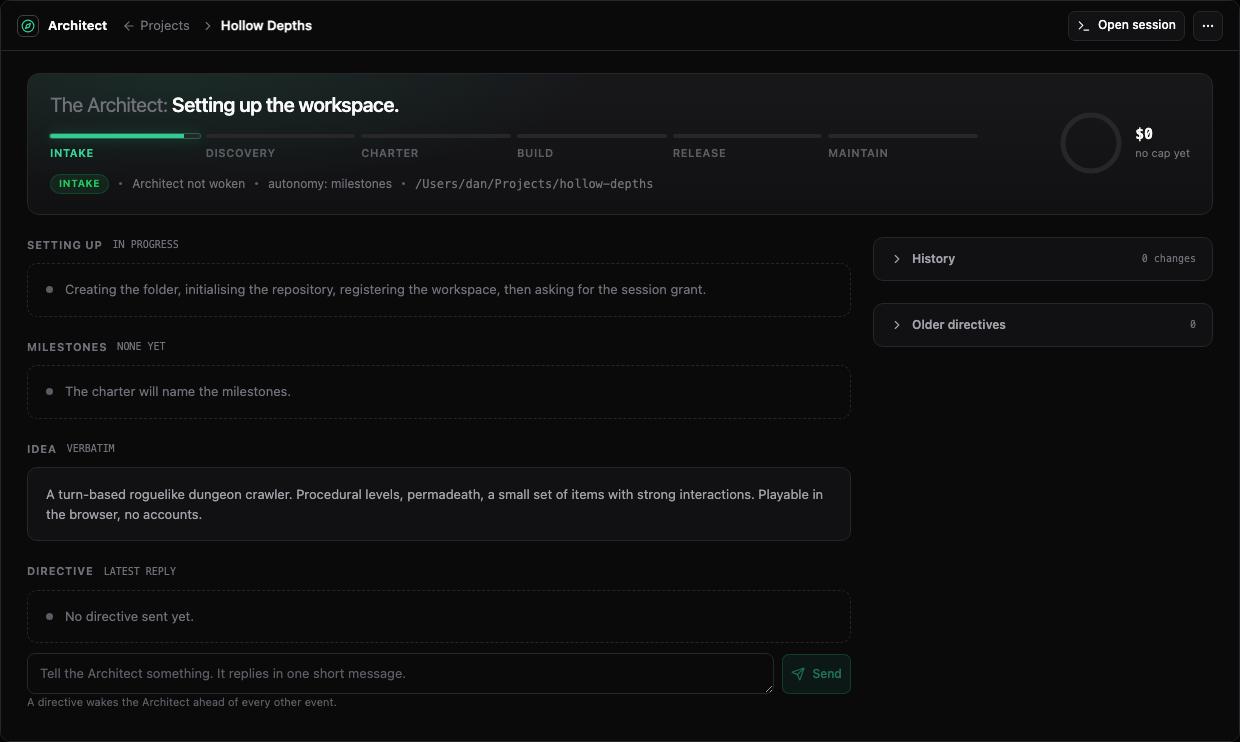
Architect creates the folder, runs git init, registers the folder as a Sero
workspace, and then asks you to allow the owner session. The project stays in
intake until you allow it. After that, discovery starts.
Phases
Every project moves through six phases in this order. Architect never skips a phase and never moves back.
An overlay describes a stop or wait during a phase. It does not add a phase:
decision: a question waits for you. Nothing that depends on it moves.paused: you paused the project. Running work finishes, but Architect does not start more work until you resume.limited: spend reached the cap. Raise the cap to continue.blocked: the owner needs help it cannot get on its own. The page says why.
The project page
The project page has four sections:
- State shows one sentence from Architect, the phase, any overlay, and spend against the cap.
- Needs you contains open decisions and approvals. Each decision card shows the question, the options with their consequences, the reason it was raised, and the recommended option already selected. Select Answer to submit your choice. If nothing is needed, the section stays small.
- Milestones has one row per milestone with its status and, when work is running, one Open in Orchestrator link to the Workflow or Room. Evidence for a closed milestone sits behind a disclosure.
- Directive lets you send Architect a short message and shows its latest reply. Architect handles a directive before other updates.
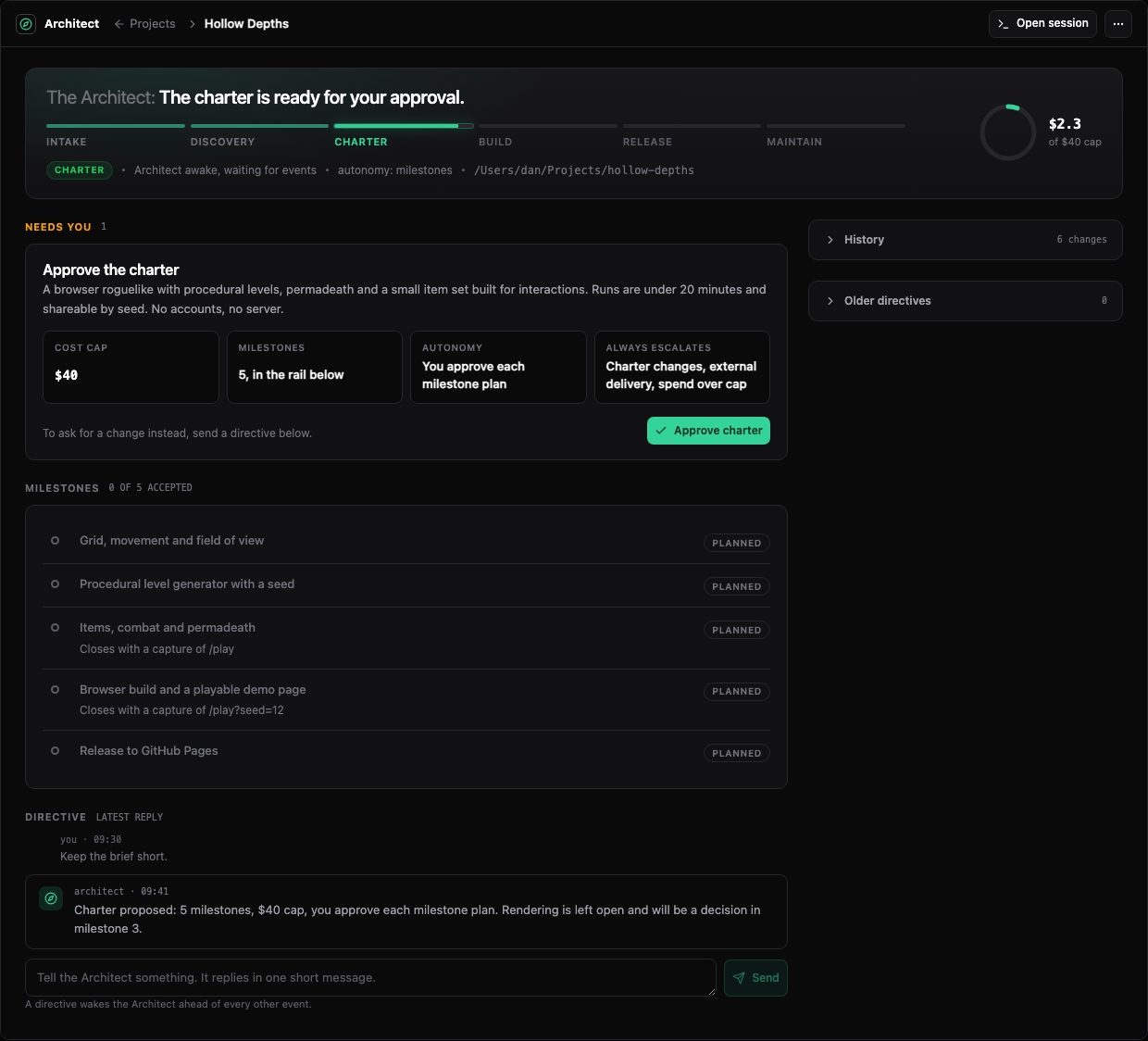
History is its own view, opened from the project controls menu (⋯). Older directives stay behind a disclosure in the side column. The page never shows an event log and never streams agent output. To read the owner's session, select Open session.
Milestones close on evidence
A milestone is complete only when Architect has checked it. The owner cannot mark a milestone done by saying so. Architect runs the project's check commands, reads the git diff, and for a milestone with a preview route it starts the dev server, loads the route and saves a screenshot. The result is recorded on the milestone as one of four states:
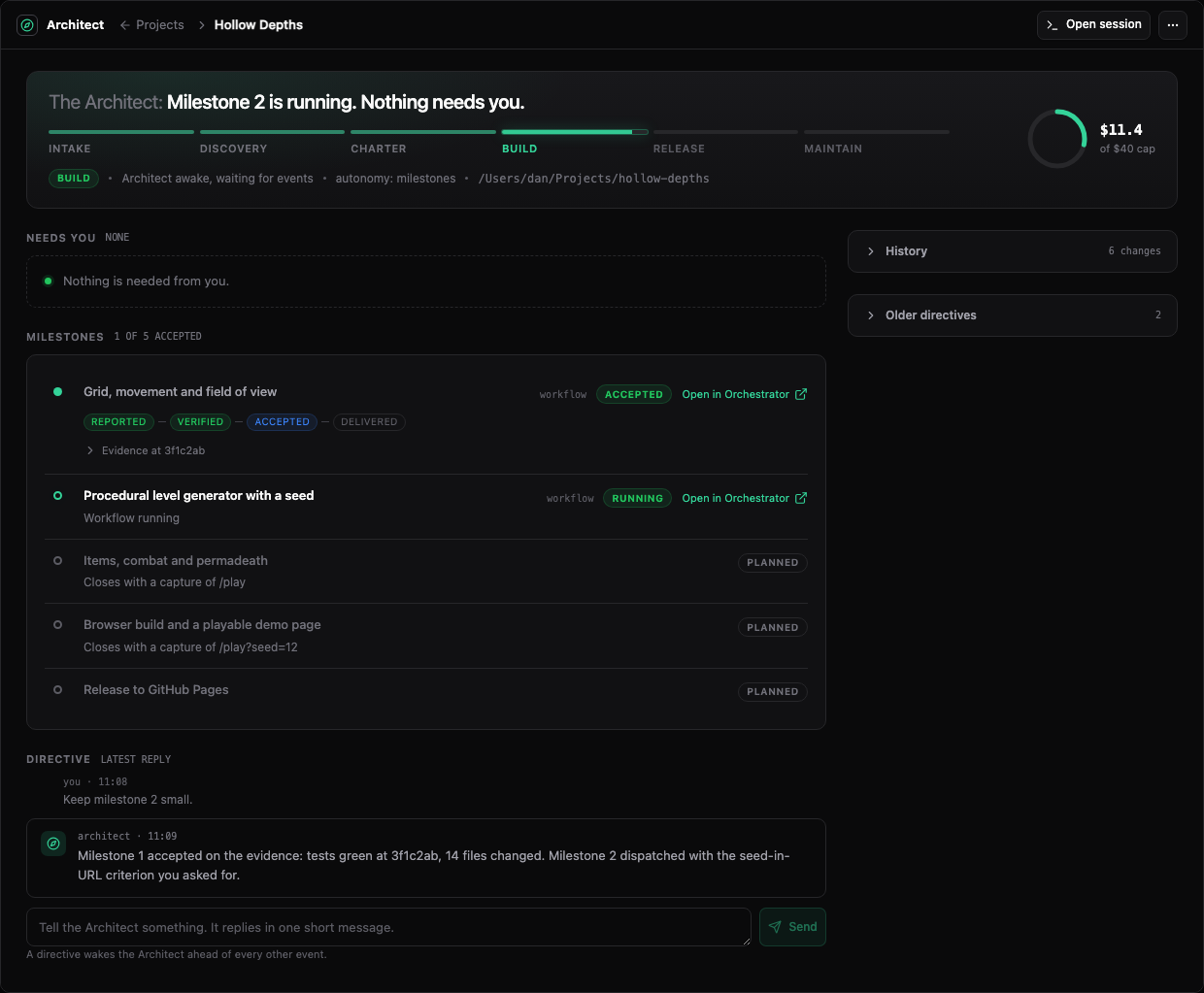
A lower state never stands in for a higher one. If files change after the evidence was taken, the evidence is marked stale and the checks run again.
Decisions
Architect asks for your approval before it:
- changes an approved charter;
- delivers anything outside the workspace, such as an email or webhook;
- spends beyond the cap.
Other decisions depend on the autonomy setting you chose at the charter:
A decision has no timeout and no default. Work that depends on your answer waits. Other milestones keep running.
Research that must run something
A research Room reads by default: one shared checkout, no shell. When the owner knows a question can only be answered by running commands, such as a test suite or a build, it asks for a Room with command access. Each member then works in its own worktree and may run commands, but still must not implement the product.
If a Room's planner asks for something it does not have, that question comes to you as a decision instead of stopping the project:
- Let the Room run commands plans the research again with command access.
- Answer in a note withdraws the research and gives your note to the owner, which rewords the question.
- Withdraw the question drops the research and the owner continues without it.
Cost
Every project has a cost cap set at the charter. Spend includes the owner session, research runs and every dispatched Workflow and Room. When the project reaches the cap, Architect stops starting new work. Work already in progress can continue and add cost before the next budget check. Raise the cap from the project page to continue.
The cap limits the work Architect starts. It is not a ceiling on what a project can spend: a Workflow or Room already running has its own limit and can keep adding cost until it stops. The spend line shows a lower bound. When a source reported a total without per-call detail, or did not report at all, the amount is marked as incomplete rather than filled in.
Run inspector
Open Run inspector from the controls menu. It shows where a project's time and money went, and it opens on the totals: reading the individual operations is a separate action named Load activity.
- View selects Shared activity or one run. A project groups its work by objective, so each run answers one thing rather than one session.
- Cumulative spend, By activity and By model are computed from the operations shown. A row in the activity chart sets the timeline filter, so the two always describe the same records.
- Selected activity shows an operation's own cost and, separately, its inclusive cost with everything below it. The inclusive figure is never added into a total that already counts those operations.
- Shared activity is charged once to the project and is reported beside a run's own figure, never inside it.
- A filtered view says which scope its total covers, rather than presenting part of a run as the whole of it.
Model and thinking level are shown together, because the same model at two effort levels is two decisions. An operation that recorded no model says so rather than showing a blank.
Controls
The controls menu on the project page offers:
- Pause and Resume. Pause prevents Architect from starting or planning new work. Work in flight continues.
- Stop. Stops future work. Work in flight continues. Work that stops after Stop still appears in the run inspector with its usage.
- Raise cap.
- Autonomy. Cycles through the three settings.
- Models…. Sets a project model default per tier. A tier with no project default inherits the global selection in Admin.
- Run inspector…. Opens the run inspector for this project.
- Delete project. Removes the record and the owner session. Files in the project folder stay.
The dashboard widget
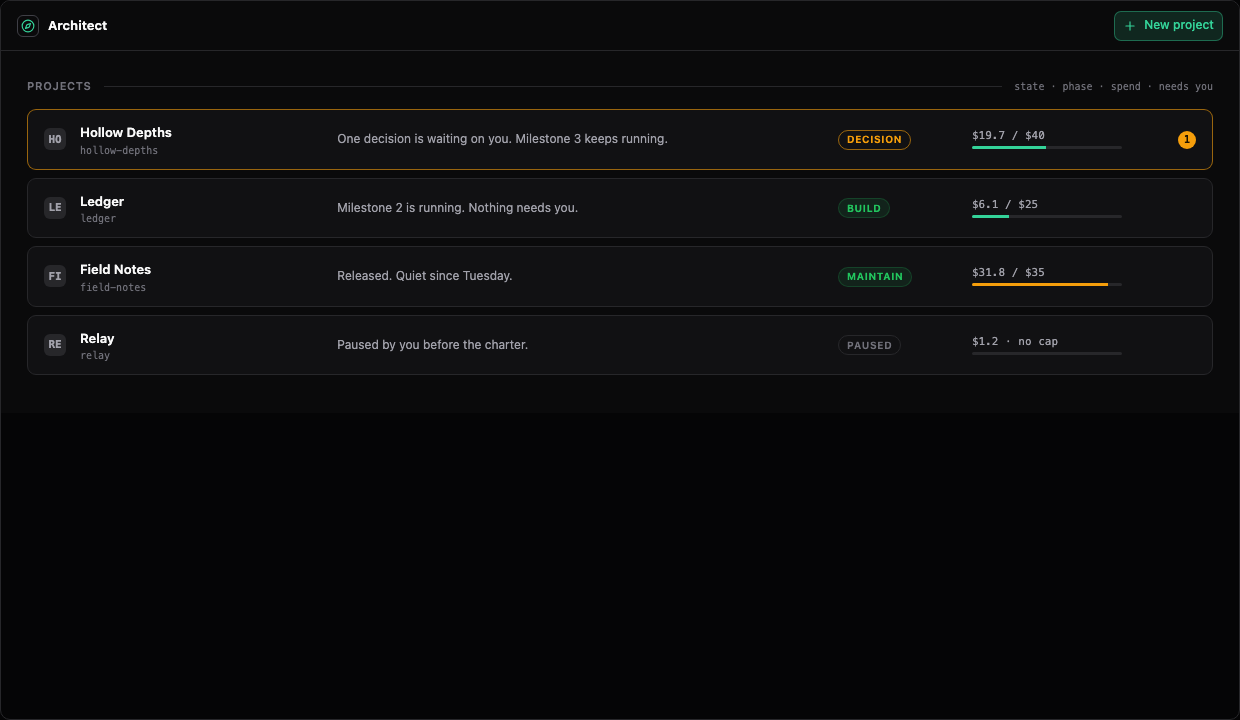
The Architect widget shows your projects with their state lines and the number of items that need you. With no projects it offers one action, New project.
Related pages
- Architect reference: tools, record fields, statuses and storage.
- Orchestrator: Workflows, Rooms and Goals.